
Teams | Collaboration | Customer Service | Project Management

MASTER Miro in 2 Minutes: Fast, Simple, Powerful

Pressed for time but curious about Miro? In just 2 minutes, this video gives you a lightning-fast yet effective overview of Miro’s core features. Whether you're brand new or just need a quick refresher, you’ll walk away with everything you need to get started. What You’ll Learn: Why Watch This: Who This Is For: Explore More: This is just the beginning! Check out the rest of our channel for deep dives and tutorials to unlock Miro’s full power.

New Templates in Miroverse - March 2025

As clocks sprung forward and days grew longer, March brought with it a spirit of fresh starts and bright ideas. And wow — did our community deliver! This month, Miroverse blossomed with 119 new templates, each one reflecting your creativity, curiosity, and passion for better collaboration. If you have a Miro board that could help others, now’s the perfect time to publish your template.

How to Use Tables and Timelines in Miro | Organize Projects like a Pro

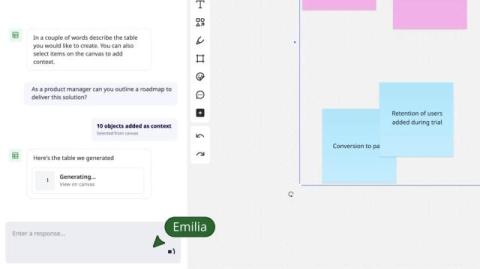
Learn how to use tables and timelines in Miro to structure your ideas, plan next steps, and customize your workflows for any project. In this video, we walk you through: How to create a table in Miro effortlessly Pasting a CSV directly onto the canvas Full customization options for rows, columns, and more Using tables and timelines for project planning, task tracking, and more Whether you're working on a product roadmap, content calendar, or project management board, Miro tables are a game-changer for visual structure and flexibility.

How to Create Content in Miro: Everything You Need to Know

Learn how to create content in Miro like a pro! In this video, we walk you through Miro’s powerful creation toolbar and share tips for using it effectively. We start by exploring the templates library, then show you how to add sticky notes, write text, create frames, and more. Whether you're new to Miro or want to level up your visual collaboration, this tutorial covers everything you need to start creating clear and engaging content.

How to Use Sticky Notes with Miro AI GAME-CHANGING Tips!

Sticky notes are no longer just for jotting down ideas—Miro AI takes them to the next level! In this quick tutorial, discover how to use sticky notes to brainstorm, organize, and plan smarter than ever. What you'll learn in this video: With Miro AI, sticky notes become a powerful tool for collaboration and turning ideas into action. Watch now to see the magic in action! Like this video? Don’t forget to comment and subscribe for more 1-minute Miro tips!

Research Planner Blueprint: Supercharge Your Research Workflow

Explore the brand-new Research Planner Blueprint in Miro — designed by Raz from Just Mad to help teams run better research, faster. In this quick tour, Raz walks you through the blueprint’s structure and show how to use each dedicated section — from direct interviews and surveys to competitor research. Supercharged with Miro AI, this blueprint helps you speed up your workflow and collaborate with your team more effectively.

How to Design UML Class Diagrams in Miro INSTANTLY with AI

Creating UML class diagrams doesn’t have to be a hassle—Miro AI makes it fast and effortless! In this tutorial, learn how to use Miro to design UML class diagrams in seconds. Perfect for software engineers, designers, or anyone needing a clear start for creating professional diagrams. What you'll learn in this video: Take your workflows to the next level with Miro AI. Watch now to see how it’s done!

NEW Diagramming Format: Build Precise Diagrams in Miro with Ease

Complex diagrams don’t need complex tools. Miro’s Diagramming Format gives you the structure and precision of a dedicated diagramming platform—without losing the collaborative context of your workspace. From process maps to technical workflows, build with accuracy using specialized tools like snap-to-grid, layers, and auto-align. Then switch between focus mode and the board to connect your work to the bigger picture.